
The meeting was already underway when I opened the shared document. I typed the right password, approved the sign-in prompt, and landed right back on the same login form. The second attempt did exactly the same thing. My first instinct was to reset the password, but a colleague could open the file and my account still worked on my phone. That small comparison changed the question: was the account rejecting me, or was this browser failing to keep the session it had just received?
A repeated sign-in page can have several causes. A site may need a cookie to remember the session, a privacy setting may block a required cross-site step, an extension may interfere with a script, or the service itself may be having trouble. A browser test cannot prove which one is responsible until you change one condition at a time. The goal is to collect a useful clue without weakening privacy settings across every site or deleting data you still need.
Start with a clean comparison, not a password reset
Open a private window in Chrome and visit the service by typing its address yourself. Sign in using the normal route and note what happens after the final confirmation. If it works there but loops in your usual window, the account is less likely to be the immediate cause. The regular profile may have stale site data, an extension conflict, or a different cookie rule.
A private window is a diagnostic comparison, not a perfect duplicate of ordinary browsing. It starts with separate temporary data, and Chrome blocks third-party cookies there by default. Extensions may also be unavailable unless you explicitly allow them. If the site works privately, that narrows the search to differences between the two browsing contexts; it does not identify cookies as the cause by itself.
If private browsing fails too, open a second site that uses the same account provider, if one is available, and check the service’s status or support notice. Avoid repeatedly submitting credentials if the page is unfamiliar or its address has changed unexpectedly. Confirm that the domain is the one you intended to visit. If the account is managed by an employer or school, an administrator may control sign-in rules that you cannot change locally.
| Check | What it can tell you | Next action |
|---|---|---|
| Private window works | The regular profile may differ | Compare cookies and extensions |
| Several services fail | The account provider or browser may be involved | Check service notices and browser settings |
| Only one website loops | The issue may be specific to that site | Check its status and required sign-in domains |
| One controlled change helps | A setting may be involved | Keep the narrow fix and record it |
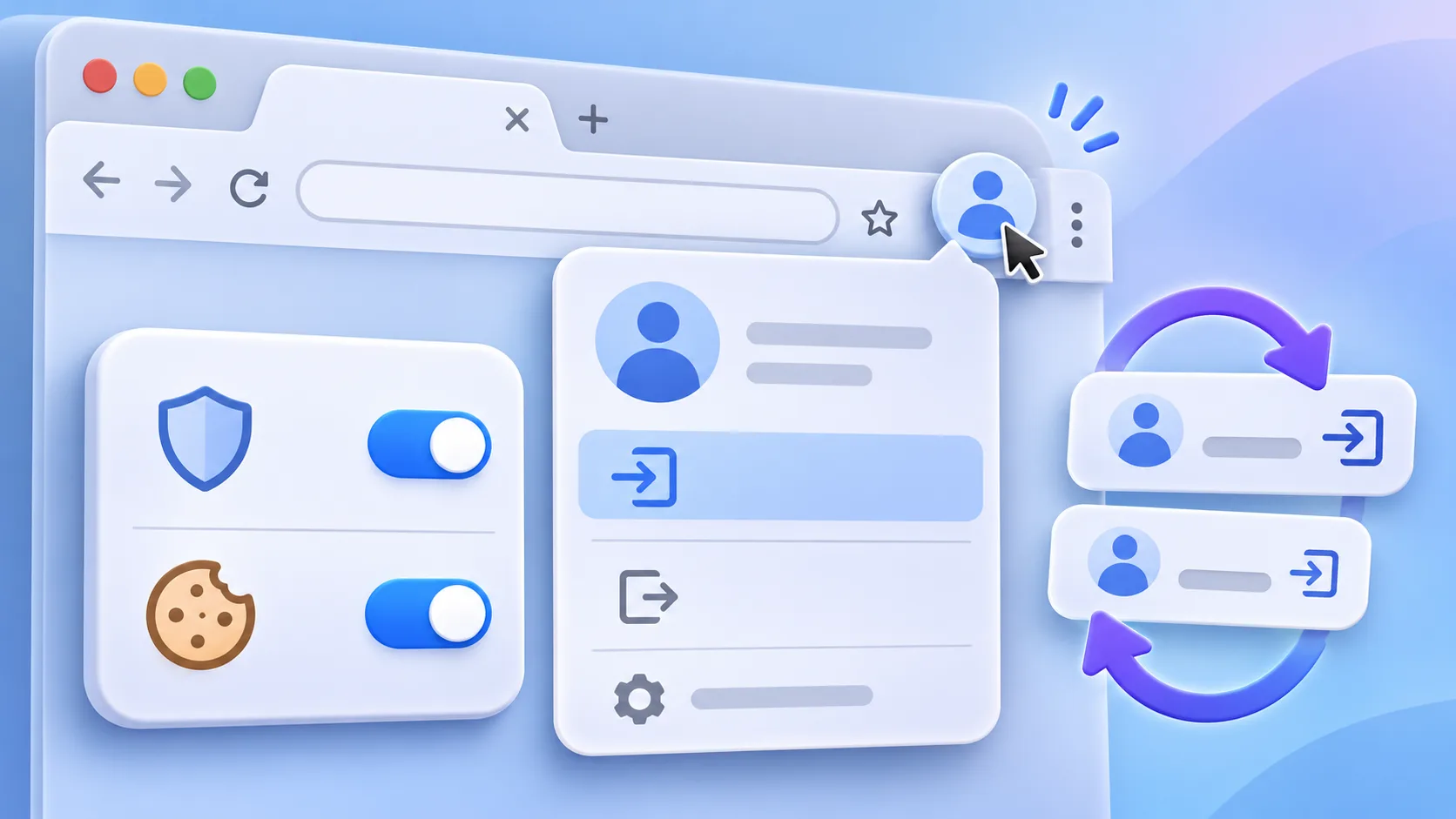
Check cookies and extensions one at a time
Chrome distinguishes first-party cookies, which come from the site in your address bar, from third-party cookies associated with other embedded sites. Some sign-in flows briefly move between a service and a separate identity provider. If the browser blocks a cookie that the flow expects, the return trip may not preserve the login state. Other sites can authenticate entirely with first-party data, so cookie restrictions do not explain every loop.
Open Settings > Privacy and security > Third-party cookies. The wording and available controls can vary with Chrome version, account management, and region. If the service’s own support page says a specific cross-site cookie is needed, add only that site’s exception and reload the sign-in page. Do not switch every site to unrestricted cookies as a first response. Chrome’s cookie help page describes how to review and remove site exceptions; check it for the current menu labels.
Next, inspect extensions. Privacy filters, script controls, shopping helpers, and security tools can change how a page loads, though their presence alone does not mean one is at fault. Open More > Extensions > Manage Extensions, turn off one extension that could affect the login flow, reload the site, and try once. If the loop remains, re-enable that extension before testing another. This one-at-a-time method makes the result interpretable and prevents leaving useful protection disabled by accident.
If a work or school policy manages Chrome, you may see controls that are unavailable or labeled as managed. Do not try to bypass an organizational restriction. Capture the exact error and send it to the administrator, along with the browser version and the time the loop occurred. Avoid sending passwords, one-time codes, session cookies, or screenshots that expose private account details.
Remove only the site data you can afford to lose
Clearing all browsing data is a blunt step. It can sign you out of many sites, remove local preferences, and erase information you expected the browser to keep. Before deleting anything, confirm that you know how to sign back in and can reach the account’s recovery email, authenticator, or other recovery method. A password saved in a password manager may remain there, but do not assume every site’s local settings will survive.
In Chrome, you can review on-device site data through the privacy settings or the site information controls near the address bar. Search for the affected domain and remove only its stored data, then close and reopen the tab. Be aware that a service may use more than one related domain during sign-in. Follow the service’s documentation before removing data from additional domains; do not guess which identity-provider records are safe to erase.
After the targeted removal, sign in once and observe whether the same loop returns. If it does, stop repeating the deletion. Check the service status, test a different browser or device, and note whether the problem occurs only on one network. On a managed device, a browser policy or security product may reapply the setting. In that case, an administrator is the right person to review it.
Use the result to choose the next step. A clean profile that works points toward something in the ordinary profile, but you still need to isolate it. If a site-specific cookie exception resolves the issue, keep the exception limited to the service and revisit it if the service changes its sign-in flow. If disabling one extension helps, check for an update or ask its publisher about compatibility before deciding whether to remove it. If neither change matters, restore the original settings and widen the diagnosis rather than accumulating exceptions.
When every browser and device fails, the browser is no longer the leading suspect. The service could be down, the account could require an additional verification step, or an administrator could have changed access rules. Use the service’s official sign-in page and status information. If you contact support, share the non-sensitive symptom, browser and operating-system versions, and the steps already tried. Keep authentication codes and session links private.
One useful habit is to write down the exact transition that fails: the page where credentials are entered, the confirmation step, and the address shown when the login form reappears. This is more informative than the broad note “Chrome is broken.” A service may redirect between several subdomains, while a saved bookmark may point to an older sign-in route. Compare the address with the service’s own help page before changing privacy controls.
If your account uses passkeys, a security key, or an authenticator prompt, treat those steps as separate evidence. A successful second-factor approval followed by a loop usually means the challenge was accepted, but the page still might not have retained the session. Do not delete passkeys or enroll a new factor to solve a browser-state issue. Keep a recovery method available and contact the service if its official flow repeatedly loses the completed sign-in.
After a successful fix, recheck the exception list and extension state. Remove temporary permissions that are no longer needed, and update Chrome and the affected extension through their normal settings pages. If the same issue returns after an update, note the version and date. This gives support a reproducible clue without exposing private tokens or asking you to leave broad tracking permissions enabled.
Frequently asked questions
Why can a private window work when my normal Chrome window does not?
It starts with temporary site data and a different extension state. That comparison suggests the regular profile may be involved, but private browsing also applies different cookie behavior, so it does not pinpoint one setting by itself.
Should I allow all third-party cookies to fix a sign-in loop?
No. First check whether the service documents a specific cross-site requirement. If it does, use a narrow exception for the relevant site, then test again. Broad changes affect other websites and may reduce privacy.
Will clearing Chrome data delete my saved password?
It depends on what you clear and where the password is stored. Site data can sign you out and erase local preferences. Confirm your password-manager and account-recovery access before removing data, and target the affected site only.
Quick summary
Separate an account failure from a browser-profile problem with a clean-window comparison.
Use a narrow site exception and remove only the affected site’s data.